Family Tree Maker 2019 offers a wide range of charts and reports that help users visualize, organize, and share their genealogy research. Several relationship charts, family group sheets, pedigree charts, and customizable timeline reports that can include photos and historical events are available through the Publish workspace in FTM 2019.
After creating charts and reports, users can save them, print them, create descendant reports, or export them as PDF files for sharing with family members and genealogy researchers.
Quick Answer
To create Charts and Reports in FTM 2019:
- Open your family tree in Family Tree Maker 2019.
- Click the Publish tab from the top menu.
- Select the chart or report you want to create.
- Customize the layout, generations, spacing, and included information.
- Preview the result.
- Print, save, or export the chart or report as a PDF file.
This guide explains all available Charts and Reports in FTM 2019 and how to use them effectively.
What Charts and Reports Are Available in Family Tree Maker 2019?
In Family Tree Maker 2019 for Windows, open your tree and click the Publish button located on the top menu. From the left panel, choose the chart or report you want to create. Before printing or saving, you can customize layouts, spacing, colors, generations, and included data.
Charts Available in FTM 2019
Pedigree Chart
Displays a person’s direct ancestors in a graphical format. Users can print it as a standard chart or create a large poster.
Descendant Chart
Shows the descendants of a selected individual, including children, grandchildren, and future generations.
Relationship Chart
Illustrates the relationship between two individuals and shows all family connections between them.
Hourglass Chart
Displays both ancestors and descendants of the selected person in a single chart.
Vertical Pedigree Chart
Shows direct-line ancestors in a vertical family tree format.
Horizontal Hourglass Chart
Displays ancestors on one side and descendants on the other, making family relationships easier to understand.
Bow Tie Chart
Shows both maternal and paternal ancestral lines from the selected individual.
Family Tree Chart
Displays direct bloodline ancestors in a traditional family tree structure.
Extended Family Chart
Allows users to display large portions of the family tree or customize exactly what appears.
Fan Chart
Displays ancestors in a fan-shaped layout, making it easy to view multiple generations at once.
Genealogy Reports in FTM 2019
Ahnentafel Report
Lists all ancestors of a selected individual using a numbered genealogy format.
Descendant Report
Provides detailed information about the descendants of a selected individual.
Person Reports
Individual Report
Displays detailed information about a selected person, including facts, notes, photos, and sources.
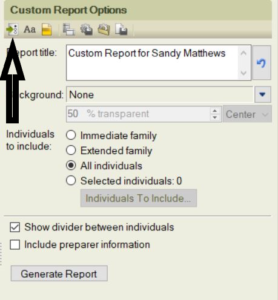
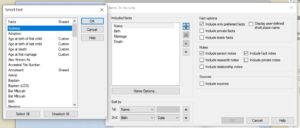
Custom Report
Allows users to customize which information appears in the report.
Data Error Report
Identifies potential errors or inconsistencies within your family tree data.
Timeline Report
Creates a chronological timeline of an individual’s life events.
Surname Report
Generates a list of surnames found within the family tree.
Notes Report
Displays notes associated with selected individuals.
Task List Report
Shows genealogy research tasks and pending activities.
Individual Reports List
Includes:
- Contact List
- Anniversary List
- Birthday List
- People Index
- People with ID Numbers
Relationship Reports
Family Group Sheet
Displays detailed information about parents and their children. Users can include notes, facts, and photographs.
Kinship Report
Shows how one person is related to others within the family tree.
Marriage Report
Lists marriages and relationship details found within the tree.
Parentage Report
Identifies biological, adopted, foster, or guardian relationships.
Outline Descendant Report
Lists descendants generation by generation.
Outline Ancestor Report
Lists ancestors generation by generation.
Family View Report
Displays three generations of family members together.
Place Report in Family Tree Maker 2019
The Place Report lists all locations associated with individuals in your tree. It helps track migrations, residences, births, marriages, deaths, and other events across different geographic locations.
Media Reports
Family Tree Maker 2019 offers three primary media reports.
Media Item Report
Displays media items with categories, captions, and dates.
Photo Album Report
Includes photographs and important life events for selected individuals.
Media Usage Report
Shows where media files are being used throughout the family tree.
Source Reports
Source Usage Report
Displays all sources used within the family tree and identifies where they are attached.
Source Bibliography
Creates a bibliography from the sources stored in your tree.
Documented Facts Report
Lists all facts supported by source citations.
Undocumented Facts Report
Identifies facts that currently have no supporting source documentation.
Additional Reports in Family Tree Maker 2019
Calendar Report
Displays birthdays, anniversaries, marriages, and deaths in calendar format.
Smart Story Report (Text Item)
Creates narrative stories about individuals based on information stored in the tree.
Books
One of the most powerful features in Family Tree Maker 2019 allows users to create genealogy books containing charts, reports, photographs, and family history information. Books can be printed, shared digitally, or exported as PDF files.
How to Create a Chart or Report in FTM 2019
Creating a Chart or Report in Family Tree Maker 2019 is simple:
- Open your tree in Family Tree Maker 2019.
- Click the Publish button from the top menu.
- Select the desired chart or report from the left panel.
- Customize the layout, generations, spacing, and included information.
- Preview the output.
- Print, save, or export the report as a PDF file.
Why Use Charts and Reports in FTM 2019?
Charts and Reports help genealogy researchers:
- Visualize family relationships.
- Organize family history research.
- Share information with relatives.
- Identify missing data and research gaps.
- Create professional genealogy presentations.
- Preserve family history for future generations.
Conclusion
Charts and Reports in FTM 2019 are powerful tools that help users organize, analyze, and share their genealogy research. Whether you need a Pedigree Chart, Family Group Sheet, Timeline Report, Source Report, or a complete genealogy book, Family Tree Maker 2019 provides flexible options for every type of family history project.
By using the Publish workspace effectively, you can create professional-quality charts and reports that make your family history easier to understand and share.
Need Help?
If you need assistance creating charts, generating reports, exporting PDFs, or using any Family Tree Maker 2019 feature, contact our support team.
📞 Family Tree Maker Support: +1-888-257-3335
💬 Live Chat with a Family Tree Maker Expert
Frequently Asked Questions
Question: What is the Publish workspace in FTM 2019?
Answer: The Publish workspace allows users to create, customize, print, and export genealogy charts and reports.
Question: Can I export charts and reports as PDF files?
Answer: Yes. Family Tree Maker 2019 allows users to save charts and reports as PDF files for easy sharing.
Question: Which chart is best for showing ancestors?
Answer: The Pedigree Chart and Fan Chart are commonly used to display direct ancestors.
Question: What is the Family Group Sheet?
Answer: The Family Group Sheet provides detailed information about parents and children within a family unit.
Question: Can I create a genealogy book in FTM 2019?
Answer: Yes. Family Tree Maker 2019 includes a Books feature that allows users to create and print genealogy books containing charts, reports, and photographs.
Andy Smith is a genealogy researcher and family history specialist with over 10 years of experience in family tree research, ancestry records, and genealogy software. He specializes in Family Tree Maker, Legacy Family Tree, Ancestry, FamilySearch, and DNA-based family history research, helping users preserve and organize their family heritage.