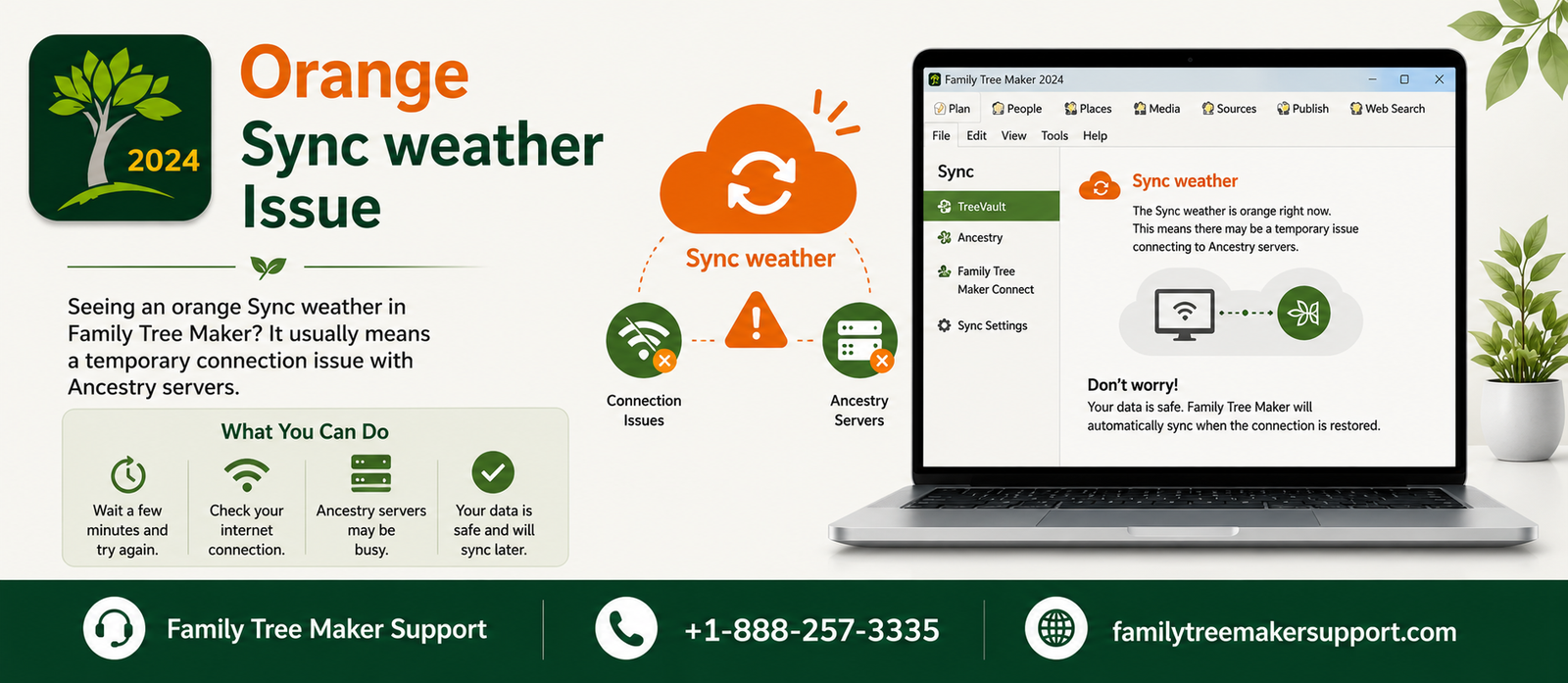
Have you encountered the Orange Sync Weather Issue and figured out what it means? It happens due to temporary connection issues affecting the communication with Ancestry servers. Although this issue is not caused by software, it is important to understand it to avoid incomplete synchronization and protect your genealogy data. This guide will walk you through everything you must know about the orange sync weather warning.
Orange “Sync Weather” Issue
An orange Sync Weather warning in Family Tree Maker (FTM) is a feature of the Sync Weather report, which was introduced in FTM 2017. It was later included in FTM 2019 and FTM 2024. It is a warning status, not an error message. The purpose is to inform the user that syncing is possible but should be approached with caution because temporary conditions can easily affect synchronization.
Type Of Sync Weather Issues In Weather Report
There are a total of three different sync weather states you will notice while using FTM. Go through all of them at once:
Green – No problem found, safe to sync.
Orange – Problems may occur, syncing is not recommended.
Red – Serious connection problems, syncing is impossible.
Understanding Red Or Orange Sync Weather Status Last
The reason behind the red sync weather status is the interruption between Family Tree Maker and Ancestry, even if it is just for a few seconds. It lasts for a short period and usually lasts a few seconds to 5 minutes maximum.
After the connection is restored, the status changes from orange to one hour. If there is no connection during that period, Sync Weather will turn green, allowing syncing to act normally again.
What Leads To Red Sync Weather?
It indicates that the connection between Family Tree Maker and Ancestry is temporarily interrupted. It can happen for various reasons, including maintenance, internet connection issues, or other network disruptions. These interruptions are not under Family Tree Maker’s control; the development team continuously monitors the synchronization service and is working to improve stability and reduce connection issues.
Is It Possible To Sync During Orange Sync Weather ?
Yes, it is usually considered safe to sync during orange sync weather. As another interruption can take place, it is better to wait till the status turns green if possible.
What Leads To The Appearance Of An Orange “Sync Weather” Warning?
There are a number of reasons this warning may appear on your screen while using FTM. Go through all of them at once
- Temporary communication barriers between Family Tree Maker and Ancestry servers.
- Unstable internet connection.
- Scheduled system updates.
- Temporary interruption within TreeVault cloud service.
- Synchronization improvements.
- Large family trees may take longer to sync.
- Firewall or antivirus interrupting the connection.
- High server traffic during peak hours.
- Connectivity issues within operating systems.
- Expired login session with Ancestry.
Ways Of Fixing The Orange Sync Weather Issue
By following these effective steps, you can easily resolve this issue. Know how to do so with the methods given below.
- Check whether your internet connection is stable or not.
- Wait for a while and then try again later.
- Close the FTM completely and then restart it.
- Sign out of your Ancestry account inside FTM and log back in.
- Restart your computer to clear all the temporary network or software glitches.
- Ensure the service is available before syncing.
- Install the latest FTM updates in order to avoid synchronization bugs.
- Disable the VPN and firewall on a temporary basis.
- Compact your tree file in order to optimize your tree before syncing.
- Once you make everything stable, perform another tree sync.
Conclusion!
The Orange Sync Weather Issue is a temporary synchronization alert that helps you avoid syncing during poor internet connection scenarios. Although it can easily interrupt your workflow, it does not damage your tree or cause software failure. There are a number of cases where you can resolve this after bringing stability to the connection. As a user, you can easily reduce interruptions and maintain synchronization safely with Ancestry by following troubleshooting steps, keeping Family Tree Maker up to date, and making regular backups before syncing. Together, these steps will provide a seamless experience.
 Call Family Tree Maker Support: +1-888-257-3335
 Live Chat with a Family Tree Maker Expert
Andy Smith is a genealogy researcher and family history specialist with over 10 years of experience in family tree research, ancestry records, and genealogy software. He specializes in Family Tree Maker, Legacy Family Tree, Ancestry, FamilySearch, and DNA-based family history research, helping users preserve and organize their family heritage.