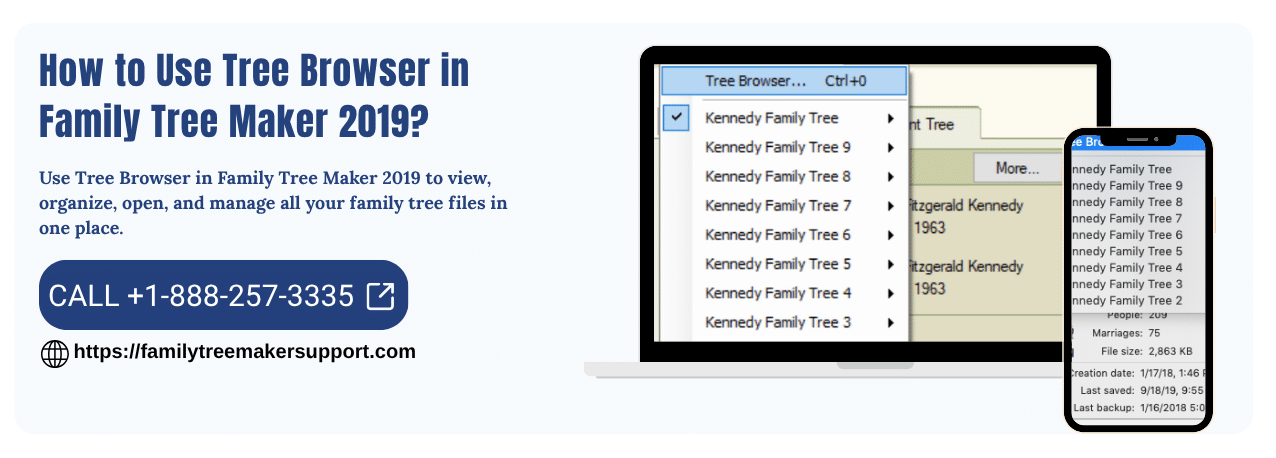
If you want to easily manage and view all your family trees in one place, the Tree Browser in Family Tree Maker 2019 is a powerful feature you should understand. This tool allows users to organize, access, and manage multiple tree files efficiently.
In this guide, you will learn how to use Tree Browser in Family Tree maker 2019, its features, and how it helps improve your workflow.
What is Tree Browser in Family Tree Maker 2019?
The Tree Browser is a built-in feature in Family Tree Maker 2019 that lets you view and manage all your tree files from a single window. Whether your trees are stored locally, synced online, or backed up, this feature makes navigation simple and efficient.
It displays important information about each tree, including:
- File size
- Number of people and media files
- Date created and last modified
- Sync status with Ancestry and TreeVault
Key Features of Tree Browser
The Tree Browser in Family Tree Maker 2019 offers several useful features:
- View all your trees in one place
- Quickly access recently opened trees
- Manage local and online trees
- Check sync status with Ancestry and TreeVault
- Create, open, or delete tree files easily
This functionality is also available in the Plan workspace, but it is limited to the currently open tree. The Tree Browser provides a broader overview.
How to Open Tree Browser in Family Tree Maker 2019
Follow these simple steps to open the Tree Browser:
- Open Family Tree Maker 2019
- Click on View from the top menu
- Select Tree Browser
OR
- Click the Select Tree drop-down on the left side of the toolbar
- Then click Tree Browser
Once opened, the Tree Browser window will appear on your screen.
Tree Categories Explained
On the left side of the Tree Browser window, you will find different categories to help you locate your trees quickly:
1. Recent
This section shows the trees you have recently opened. It is useful for quick access to your ongoing work.
2. All Trees
This includes all tree files available on your computer. These are grouped into:
- Current version files
- Older version files
- Backup files
- GEDCOM files
3. Family Tree Folder
This displays trees stored in the default Family Tree Maker folder, usually located in your Documents directory.
4. Ancestry
This section shows your online trees connected with your Ancestry account.
5. TreeVault
Here you can view details about your TreeVault Antenna tree and its connection with your source tree.
How to Use Tree Browser Effectively in FTM 2019?
Once you select a category, the middle section displays a list of trees. You can use the following options to refine your search:
- Sort By: Organize trees by name, date, or size
- Show: Filter specific types of files
When you select a tree, detailed information appears on the right side of the window.
Actions You Can Perform in Tree Browser
The Tree Browser allows you to manage your files easily. You can:
Open a Tree
- Click Open Tree to start working on the selected file.
Locate File
- Use Open File Location to find the folder where the tree is stored.
Delete a Tree
- Click Delete Tree to remove the file from your computer (be cautious while using this option).
Create a New Tree
- Click New Tree in the bottom-left corner
- Follow the instructions to create a fresh tree
Browse Manually
- Use the Browse button to locate a tree file manually from your system.
Benefits of Using Tree Browser
Using the Tree Browser in Family Tree Maker 2019 offers several advantages:
- Saves time by organizing all trees in one place
- Improves workflow efficiency
- Makes it easy to manage multiple tree files
- Helps track file details and sync status
- Simplifies switching between projects
Common Issues and Troubleshooting
Sometimes, users may face issues while using the Tree Browser. Here are a few quick fixes:
- Restart the software if the Tree Browser does not open
- Ensure your software is updated to the latest version
- Check file locations if trees are not दिखाई दे रहे
- Verify your internet connection for Ancestry sync
If the problem persists, professional assistance may be required.
Conclusion
The Tree Browser in Family Tree Maker 2019 is an essential feature for anyone managing multiple family trees. It provides a centralized way to view, organize, and control your data efficiently.
By understanding how to use this feature, you can significantly improve your productivity and keep your genealogy work well-organized.
FAQs
Q1. What is Tree Browser in Family Tree Maker 2019?
A. It is a feature that allows you to view and manage all your tree files from one place.
Q2. How do I open Tree Browser in Family Tree 2019?
A. Go to the View menu and select Tree Browser, or use the Select Tree drop-down.
Q3. Can I delete trees from Tree Browser?
A. Yes, you can delete tree files directly from the Tree Browser window.
Q4. What is the TreeVault option?
A. TreeVault shows information about your cloud-backed tree and its connection to your local file.
Q5. Why is my Tree Browser not working?
A. It could be due to outdated software, file location issues, or temporary glitches.
For more information please do contact us.
Andy Smith is a genealogy researcher and family history specialist with over 10 years of experience in family tree research, ancestry records, and genealogy software. He specializes in Family Tree Maker, Legacy Family Tree, Ancestry, FamilySearch, and DNA-based family history research, helping users preserve and organize their family heritage.