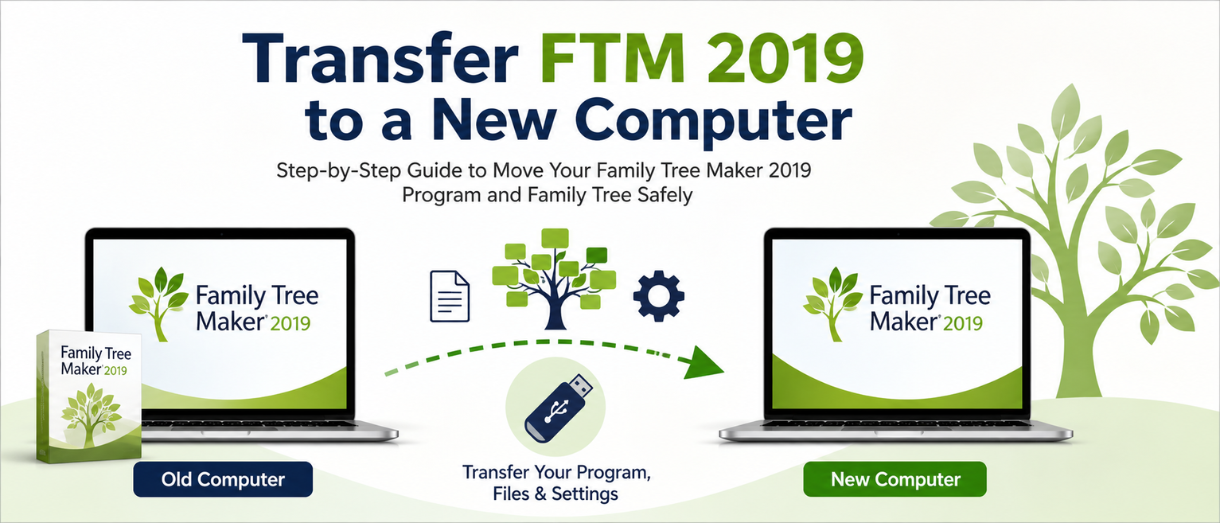
If your system has stopped supporting you or is planning to Transfer FTM 2019 to New Computer, it’s easy to proceed. You might be happy to hear that there is no risk in doing so, as everything will be completed seamlessly without having to stress about starting from zero. If the absence of an ideal guide to support you with this is your major concern, we are here to lend a hand.
With this guide, you will get a thorough understanding of how to transfer the older or latest version of the FTM tree to a new computer without any issues. Whether it’s about transferring it via external storage or setting it up on a new device, we will walk you through the process. It will help you perform a safe transfer without losing any data or encountering compatibility issues.
Transfer FTM 2019 To a New Computer: What Is The Importance Of It?
Family Tree Maker is one of the trusted genealogy programs designed to help users create, organize, and preserve their family history. As the tree grows, it will include a number of records, photos, historical documents, and source citations. After upgrading to a new computer, installing will not resolve the issue; you will need to transfer your Family Tree Maker file to ensure your research remains complete without any data loss.
A proper transfer helps prevent broken file links, missing media, and data corruption. As you have spent a number of years creating a family tree, migrating it properly will ensure the safety and accessibility of your work.
Preparation For Transferring FTM To a New Computer
For a proper transfer of FTM, it is important to get ready with the right kind of preparation. To begin, start on your old computer.
1. Update Family Tree Maker
Before proceeding, check whether Family Tree Maker is fully updated. Select Help>Check for updates, then install any available updates to ensure the best compatibility with your new computer.
2. Create A Proper Backup
Have a proper backup of your tree before moving your data. Go to File>Backup, include all media files, and save the backup as an .ftmb file. Name it to keep things easy during transfer.
3. Gather Your Family Tree Files
You can find your family tree in the Family Tree Maker folder right within the Documents folder. If you have saved your documents or photos somewhere else, locate those folders properly to transfer everything successfully.
How To Transfer FTM To a New Computer?
This is one of the most ideal ways to transfer FTM to a new computer. You can use a USB drive, but if the files are oversized, cloud storage (Google Drive) or an external hard drive will also work.
Save Your Family Tree Files From The Old Computer
- Build a connection between a USB flash drive or external storage device and your old computer.
- Locate the Family Tree Maker backup (.ftmb) file and any of the folders that have photos or other kinds of media.
- Copy the files to the USB drive. If there is enough data in the family tree, the transfer will take up to a few minutes.
Download The Family Tree Maker And Install It
- Visit the official Family Tree Maker website and download the version that matches your license. Simply launch the installer and complete the setup by adhering to the on-screen prompts.
- Now activate the software by using your product key.
- If you have hit the installation limit, just deactivate the software on your previous computer right before activating it on the new one.
Restore Your Backup
- Build a connection between a USB drive and the new computer and copy the .ftmb backup file to a convenient location such as Documents>Family Tree Maker.
- Click on Family Tree Maker and open it. Select File>Restore and choose your backup file.
- Adhere to the prompt in order to restore your family tree and any of the included photos or documents.
Usual Challenges While Transferring FTM To a New Computer
You will encounter a number of issues while transferring FTM to a new computer. Here are some of them:
- Compatibility Issues With Versions
If you are working on a pre -2017 version of Family Tree Maker, you have to convert the tree with the help of the Family Tree Maker file migration utility in order to open it in a new version.
- License Activation Issues
You will be directed to activate Family Tree Maker on a new computer. If the activation fails, verify the license information or contact Software Mackiev support for assistance.
- Large Backup Files
Family trees that contain photos, documents, and media files can result in large backup files that take too long to copy and restore.
- Lack Of Storage Space
Check whether your computer has enough space to accommodate your Family Tree Maker file and media collection.
- Compressed Backup Files
If you are looking to transfer your backup as a ZIP or compressed folder, extract all the files completely before restoring them in Family Tree Maker.
- Absence Of Media Files
The absence of media files, photos, or documents in your backup means they will not appear after the restoration. do create a full (.ftmb) backup, including media.
- Ancestry Sync Issues (if it’s applicable)
If there is a link between your tree and Ancestry, keep a backup with the option to resume syncing so the restored tree can reconnect easily on the new computer.
How To Optimize Trees After Transfer ?
After transferring the FTM to a new computer, you can easily optimize it with the following ways:
- Sync It With Online Services
If you have linked it to ancestry.com, sign in to your account and check whether the family sync is working.
- Have Regular Backups
have regular research via creating backups and storing them on an external drive or a trusted cloud storage service.
- Look For New Features
After installing a new version of Family Tree Maker, you gain access to all the updated tools and features, which can help you improve your genealogy workflow.
Use Treevault Cloud Service For Transferring Family Tree Maker
Before transferring your Family Tree Maker to a new computer, it is better to create a Treevault backup. An .ftmb backup is essential to restore your tree if something goes wrong. Treevault adds an extra layer of protection by securely preserving the latest version of your tree in the cloud. By doing this, you will be able to keep your family history safe and easily accessible during the transfer process. In order to understand the complete process and its benefits, look at our guide on how to Transfer FTM files using Treevault Cloud Service before initiating your migration.
Conclusion!
It becomes very easy and seamless to Transfer FTM 2019 to a New Computer once you start using the right way. This will help you become aware of the ideal preparation , prevent issues, apply the right methods to optimize it, and much more. For further guidance, you can refer to this guide and start working on your family tree.
 Call Family Tree Maker Support: +1-888-257-3335
 Live Chat with a Family Tree Maker Expert
Turn your Family Tree Maker 2019 transfer into a simple, secure, and stress-free process while keeping your genealogy data intact.
Andy Smith is a genealogy researcher and family history specialist with over 10 years of experience in family tree research, ancestry records, and genealogy software. He specializes in Family Tree Maker, Legacy Family Tree, Ancestry, FamilySearch, and DNA-based family history research, helping users preserve and organize their family heritage.