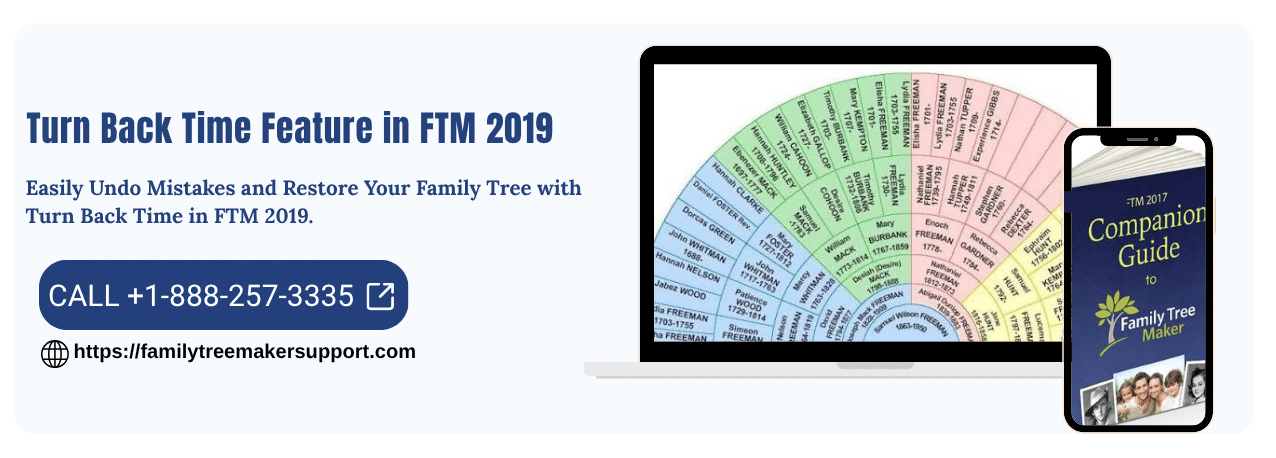
The Turn Back Time feature in FTM 2019 is one of the most powerful tools available in Family Tree Maker 2019. It allows users to restore their family tree to a previous state quickly and efficiently.
While working on your family tree, it is common to make mistakes such as incorrect entries, deleted records, or unwanted edits. Fixing these errors manually can be time-consuming. This is where the Turn Back Time feature becomes extremely helpful.
Unlike the traditional Undo option, this feature works even after you close and reopen your tree, making it a reliable solution for correcting past mistakes.
What is the Turn Back Time Feature in FTM 2019?
The Turn Back Time feature in FTM 2019 uses the Change Log system to track your recent activities. It records up to 1,000 changes made to your tree, including additions, edits, and deletions.
With this feature, you can:
- Undo multiple changes at once
- Restore your tree to a specific point in time
- Review previous actions
- Correct errors easily
This makes it an essential tool for maintaining accurate genealogy records.
How the Change Log Works?
The Change Log is the backbone of the Turn Back Time feature. It keeps a detailed history of your actions within Family Tree Maker 2019.
Key Functions of Change Log:-
- Stores up to 1,000 recent changes
- Tracks edits by date and type
- Allows filtering and sorting
- Helps identify errors quickly
You can use filters to narrow down changes by:-
- Person or record
- Date
- Type of change (add, edit, delete)
How to Use Turn Back Time Feature in FTM 2019?
Follow these step-by-step instructions:
Open the Change Log
- Go to the Plan Workspace
- Click on the Current Tree tab
- Select the Change Log tab
Review Your Changes
- View the list of recent changes
- Use filters and sorting options
- Click Expand All to see details
- Click Collapse All for a simplified view
Locate the Change
- Scroll through the list
- Use search filters to find specific changes
- Click on a change to highlight it
Go to the Record
- Click on Go To
- Review the selected record
- Make corrections if needed
Roll Back Changes
- Select the change you want to undo
- Click on Roll Back Changes
- Review the list of changes that will be undone
- Confirm the action
Always make sure to back up your tree before performing a rollback.
Important Tips Before Using Turn Back Time
Before using the Turn Back Time feature in FTM 2019, keep these tips in mind:
- Always create a backup before making changes
- Carefully review the Change Log
- Use filters to avoid rolling back the wrong changes
- Understand that rollback will undo multiple actions
Benefits of Turn Back Time Feature
The Turn Back Time feature offers several advantages:
- Saves time by undoing multiple changes at once
- Reduces the risk of data loss
- Works even after restarting the software
- Improves accuracy of your family tree
- Helps recover from major editing mistakes
Common Issues and Solutions
Unable to Find Changes
- Use filters in the Change Log
- Check the date range
Rollback Not Working
- Ensure you selected the correct change
- Restart the software and try again
Lost Data After Changes
- Restore from backup
- Use Change Log to reverse actions
Frequently Asked Questions (FAQs)
Q1. What is the Turn Back Time feature in FTM 2019?
A. It is a feature that allows users to restore their family tree to a previous state using the Change Log.
Q2. Does it work after closing the software?
A. Yes, it works even after closing and reopening your tree.
Q3. Can I undo multiple changes at once?
A. Yes, you can roll back multiple changes with a single action.
Q4. Is it safe to use this feature?
A. Yes, but it is recommended to create a backup before using it.
Q5. How many changes can be tracked?
A. Up to 1,000 recent changes are stored in the Change Log.
Conclusion
The Turn Back Time feature in FTM 2019 is an essential tool for anyone working with genealogy data. It provides a simple and effective way to undo mistakes, restore previous versions, and maintain the accuracy of your family tree.
By using this feature along with regular backups, you can ensure that your valuable data remains safe and error-free.
Need Help? We’re Here for You!
If you are facing any issues while using the Turn Back Time feature in FTM 2019, feel free to visit our website, Family Tree Maker Support. You can also connect with our experts via live chat or call us at +1-888-257-3335.
We are independent support providers and not affiliated with Software MacKiev. Our team is available 24×7 to assist you.
Andy Smith is a genealogy researcher and family history specialist with over 10 years of experience in family tree research, ancestry records, and genealogy software. He specializes in Family Tree Maker, Legacy Family Tree, Ancestry, FamilySearch, and DNA-based family history research, helping users preserve and organize their family heritage.