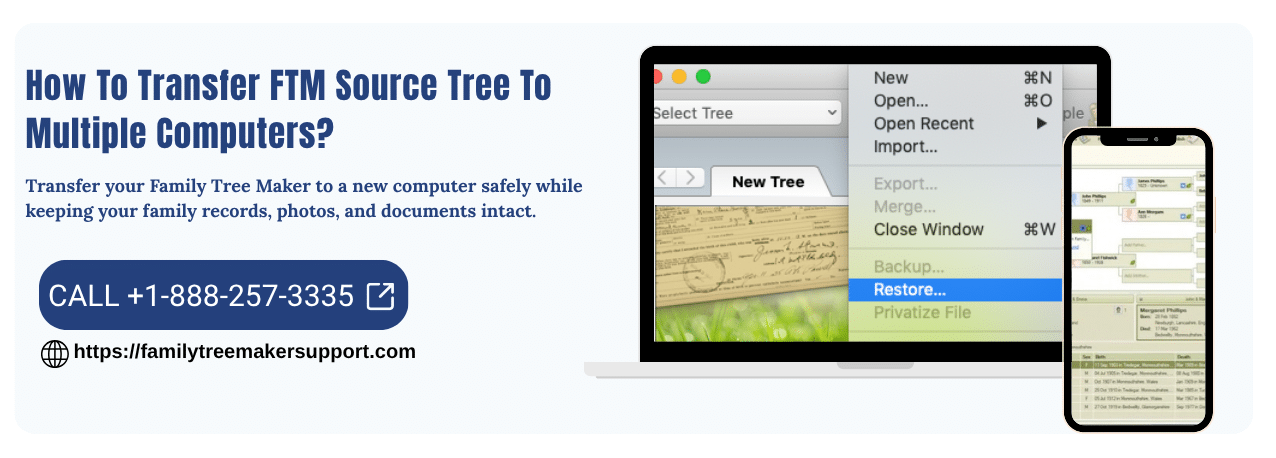
Move Your FTM Source Tree Between Two Computers Easily

You may encounter situations where you need to move your FTM source tree between two computers. This might include upgrading to a new system, replacing an old device, or reinstalling your operating system. In some cases, you may also be required to create a secure backup or access your family tree across multiple devices.

Transferring your Family Tree Maker source tree helps you preserve important family records, media files, research notes, and source citations. If you perform it properly, this process will ensure that your data remains fully intact and accessible.

By adhering to a proper backup and restore procedure, you can safely move your FTM source tree between two computers without losing valuable information, maintain continuity in your family history research, and avoid the need to rebuild your tree.

Essential Preparation To Move Your FTM Source Tree Between Two Computers

Here are some things to keep in mind before you transfer Family Tree Maker to another computer. Have a look at them one by one:

First Install Family Tree Maker On The New System

Ensure your Family Tree Maker is installed properly and working well on the destination computer to transfer the backup.

Generate A Complete Backup Of Your Tree Before Transferring

Have a complete backup of your FTM source tree on the original computer. It contains all the essential data needed to restore your family tree to the destination system.

Ensure Media Files Are Included

Verify that media files are properly included during the backup process to safeguard all associated photos, documents, and media content.

Keep Your Backup On A USB Drive

Once the backup process is complete, copy the file to a USB drive or another removable storage device for a secure transfer to the destination computer.

Import The Backup To The New System

Use the restore function in Family Tree Maker on the new computer to properly import the backup file and reconstruct the FTM source tree, including all associated data and media content.

How To Move FTM Source Tree Using An FTM Backup

Moving the family source tree involves creating a complete backup and restoring it within the new computer via the restore option in Family Tree Maker. This process is used to transfer family tree maker files safely and efficiently. ​

On The Current Computer

To initiate the transfer process, first create a backup of your FTM source tree and store it on a USB flash drive or another portable storage device.

​Step 1: Run Family Tree Maker

Click Family Tree Maker to open it on the system where your current FTM source tree is located.

​Step 2: Perform A Full Backup

Create a complete backup of your FTM source tree incorporating media files, to ensure your family tree and its associated photos, documents, and attachments are protected.

​Step 3: Export The Backup File

After the backup process completes, locate the backup file and save it to a USB flash drive or another removable storage device.

​Step 4: Disconnect The Storage Device Safely

Once the backup has been copied, safely eject the USB flash drive and disconnect it from the system. You can use the drive to restore the backup on the destination system.

On The Destination Computer

Complete the transfer by copying the backup file to the destination system and restoring it via Family Tree Maker. Ensure the application is installed beforehand.

​Step 5: Plug In An External USB Device

Connect the USB flash device containing FTM backup to an available USB port on the destination computer.

​Step 6: Import The Backup File To The Local Drive

​Transfer the backup file from the USB drive to the destination computer’s local hard disk to improve access speed and ensure a reliable restoration process.

​Step 7: Launch The Restore Process

Launch Family Tree Maker and choose File> Restore to restore your FTM source tree on the destination computer.

​Step 8: Complete Restoration Operation

​Select the backup file stored on your computer, and follow the on-screen instructions to complete the restore process. The FTM source tree will be available on the new system.

​Step 9: Specify Location And Restore Destination

​Choose the destination folder on your hard disk and click Save to complete the restoration. The tree will open automatically in Family Tree Maker.

​Step 10: Authenticate Tree Vault sign-in

​Sign in to Tree Vault with the same account used on the original computer. If prompted to create a new ancestry tree, cancel and sign in with the right credentials.

​Step 11: Navigate To Tree Browser

Open a tree browser via View> Tree Browser or access it from the toolbar menu.

​Step 12: Proceed With Tree Vault

​From the tree browser window, select Tree Vault and click Next in order to proceed.

​Step 13: Choose FTM Source Tree

​Select Find FTM source tree, choose your restored tree, verify its details, and click Use as source tree.

​Step 14: Finalize Tree Vault Linking

The restored tree will get the active FTM source tree and synchronize with Tree Vault. It will remove previous source tree linkage.

Move Using The Family Tree File

This method supports manually copying the FTM family tree file and associated media to another computer to ensure a successful transfer.

​Step 1: Find The FTM Tree File

Locate the (.FTM) source file of your family tree on the computer where it is saved.

​Step 2: Copy The Associated Files

​Transfer the. FTM file and its associated media folder to a USB drive, external storage device, or cloud storage.

​Step 3: Transfer Files To The Destination System

​Place the copied file into a secure location on the destination computer.

​Step 4: Launch The Family Tree File

​Open the transferred FTM file in the Family Tree Maker within the new system to easily access your family tree.

How To Verify The Source Tree After Transfer

Do verify the family tree source after the transfer using the steps below.

Ensure Media Files Are Linked Properly

Transfer may break links to photos and documents.

  • Open the Media Workspace and confirm whether all images are loaded correctly.
  • If gray question marks are found, right-click on the image and choose Find Missing Media to properly locate the file on your new drive.
  • Can use the built-in media tool finder as an alternative method.

Run A Data Errors Report

Validate your family tree for structural and timeline accuracy.​

  • Navigate to the publish workspace and select person reports.
  • Choose Data Errors and click Create Report.
  • Examine the report to identify inconsistencies, including invalid dates or disconnected individuals.

Reconnect Online Sync Services

Establish connections for any of the cloud-based services.​

  • For Ancestry: Open the tree in the Plan Workspace and select a link to Ancestry, then upload the restored tree to the cloud.
  • For FamilySearch: Sign in again via the web search tab.
  • For Tree Vault: Verify synchronization via the Tree Vault cloud services panel.

Verify Total Profiles

Cross-check the total number of profiles with your backup to ensure no data is missing.​

  • Navigate to the People workspace and open the Index view.
  • Check the total number of individuals in the list.
  • Cross-check this number against your previous backup to confirm whether the data has been retained.

Common Problems And Fixes While Moving Family Tree Source

This section outlines common issues occurring during the transfer of FTM tree source with effective solutions.

Missing media (red X/Icons)

In the media workspace , choose the collection tab and run find missing media. If required, relink the files manually or take help of treevault emergency tree restore to restore media.

Ancestry sync issues

Sign out of your ancestry account in the family tree maker, restart the software, and sign back in to refresh authentication. Ensure the software is properly updated via the help menu.

Corruption or freezing issues

Open the tools menu and choose the compact file tool to clear the hidden data issues and properly optimize your tree file.

Duplicate media folders

Take help of Mackiev’s media backup guide to ensure all the media paths point to a single dedicated folder.

Effective Tips To Prevent Data Loss

These tips are specifically designed to help you protect data and prevent loss during file migration.​

  • Create a complete backup of your FTM tree right before migration.
  • Include all associated files, including photos, documents, and attachments, in the backup.
  • Store the backups properly on external or cloud storage.
  • Ensure the complete transfer of both the .FTM file and media folder without any missing items.
  • Restore the backup by using Family Tree Maker’s built-in restore option.
  • Keep the family  tree maker updates on both computers to maintain compatibility.
  • Avoid interruptions or file modifications during the transfer to reduce the risk of data corruption.
  • Validate the restored tree and ensure all the media links are properly linked.

Frequently Asked Questions

Question: What is the safest method to transfer an FTM tree between computers?

Answer: One recommended method is to create a full backup of your tree and restore it to the new computer using the built-in restore option in Family Tree Maker.

Question: Do I need to reinstall Family Tree Maker on the new computer?

Answer: Yes, Family Tree Maker must be installed on the destination computer before restoring your backup file.

Question: Can I move my Family Tree Maker (FTM) source tree without losing data?

Answer: Yes, if you follow a proper backup and restore process and include media files, your data can be transferred easily without loss.

Question: What should I do if my tree does not open properly after the transfer?

Answer: Check for software updates, restore the backup again, and run a compact file operation to fix potential corruption.

Final Thoughts!

Moving your Family Tree Maker source between two computers is straightforward if done correctly using backup and restore methods. After checking that all media files, citations, and sources are included in the backup, you can safely transfer your entire family history without losing the data.

By adhering to the recommended steps, including verification of media links, checking for errors, reconnection of online services, and validation of profile counts, you can help maintain the accuracy and integrity of your family tree. Along with this, have regular backups and proper file handling to ensure long-term data protection and smooth performance across the devices.

Properly following these steps will allow you to move your FTM source tree between two computers without risking data loss or inconsistencies.

Leave a Comment