Here in this post, we have discussed the process of downloading Source Images in FTM 2010-2024. So if you are one of those users who are searching to learn more about the same, then this is just the post you should definitely go through. In no time, you will know all about Downloading Source Images in FTM effectively.
Downloading Source Images in FTM 2010-2024
In Family Tree Maker 2017 through 2024 versions, you will download Ancestry source images via a synchronization procedure. Click here for instructions on Win or Mac. Previous versions (FTM2008 or older) provided the source citations from your Ancestry.com tree when you downloaded it to your computer, but the source citations didn’t include the images of the source citations.
Since FTM 2010, there has been functionality to download all source citation media, regardless of the version of FTM you are running. You can use these steps whether you run an older version and are attempting to retrieve the Ancestry source media from the existing citation in your tree, or you run one of the newer versions and wish to confirm that you have downloaded all citing media.
Please Note: In order to access source images from Ancestry.com, you need a subscription to Ancestry that provides access to the specific database your cited image(s) came from. Accessing source image(s) by means of downloading the source citation media (i.e. using the right-click or download source citation media option) will disable the download option for those source citations once you have completed the download(s).
Downloading All Source Images in Family Tree Maker 2010-2024
Note: If you experience any issues or it fails for any reason to download all media the way described above, then you will have to download each of them individually based on the instructions located within the section entitled: Downloading All Source Images.
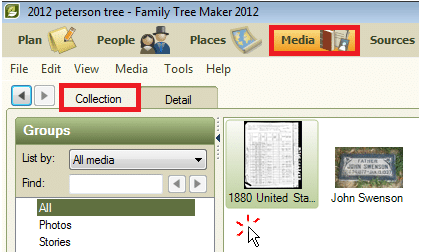
- Select the Media workspace by clicking on the button at the top of the Program Window. Once there, click on the Collection Tab if it isn’t already selected. Click in the White free area under media thumbnails, which is in the main window.

- On your keyboard, hold down the CTRL key and simultaneously press the F5 Key.
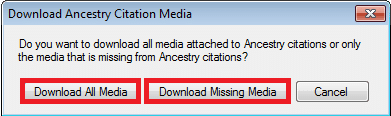
- A window will open displaying your choices for the Download Options of the Source Images. Clicking on “Download All Media Attached to the Ancestry Citations” will download All Media Attached to the Ancestry Citations. Clicking on “Download Missing Media for Source Citations” will only download the Missing Media for Source Citations.

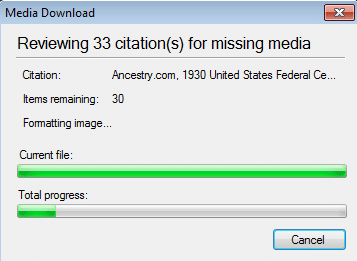
- When you click on either of those selections, you will see the progress of the source images you are downloading in a window. The downloading of source images may take a few minutes to a few hours to complete, depending on how many total images you are downloading.

- The Media Download will disappear once the Download Process has completed, and all source Images will be temporarily displayed as thumbnails contained within the Media Box.
Downloading an Individual source image
NOTE: When downloading images associated with citations, you will need to repeat these steps each time you want to download the associated image of other citations.
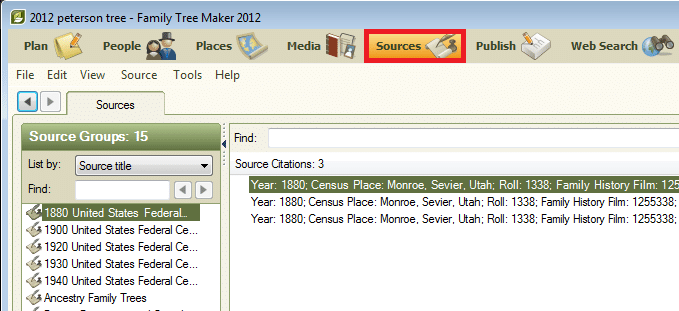
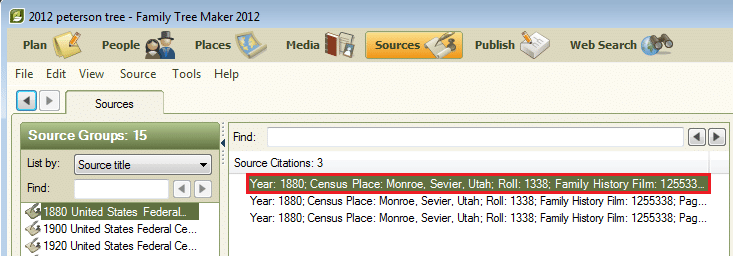
- Click the Sources workspace button at the top of the program interface to access the Sources workspace.

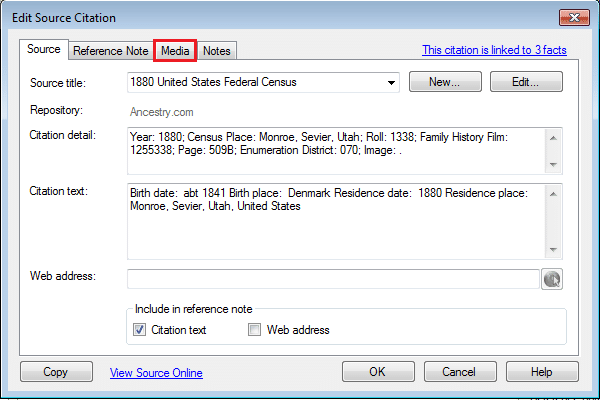
- Locate and double-click on the citation to download its associated image.

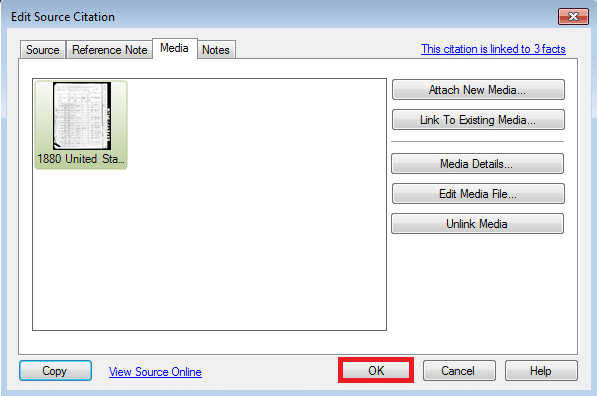
- The Edit Source Citation window will open. Click on the Media tab.

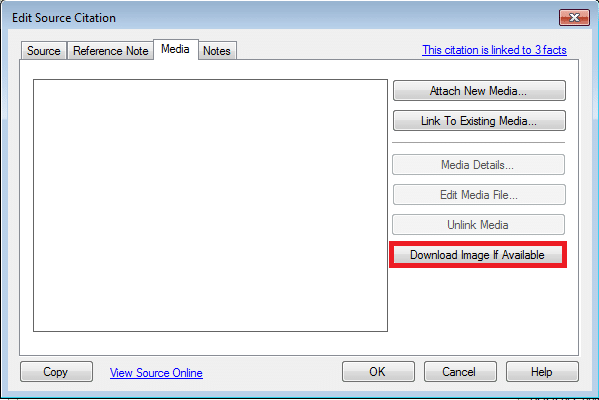
- If an image is available for the citation, you will see a Download Image If Available button on the bottom-right of the Edit Source Citation window.

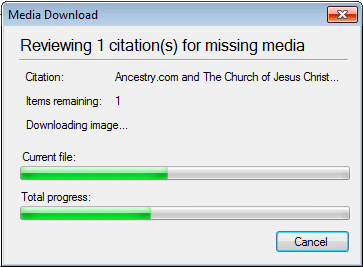
- Click on the Download Image If Available button. The Media Download window will display your download progress.

- At this point, the image for the citation has been downloaded to your computer. You can access the downloaded image via the Media workspace or directly from the source citation. Click ok to close the Media Download window.

Need Support?
After reading through the above instructions, you should be able to download source images in Family Tree Maker 2024. If you need any assistance, you can call the Family Tree Maker support number at +1-888-257-3335. Moreover, feel free to connect with our experts using the Live Chat Support for instant help.