Thinking about the right way of downloading source images in FTM 2010-2024. By doing so, you can keep copies of the media attached to your ancestry source citations on your computer. Whether you are looking for all available images or just a specific one, this guide will cover both in a few simple steps. Keep reading to learn more.
Downloading Source Images in FTM 2010-2024
In Family Tree Maker 2017 through 2024 versions, you will download Ancestry source images via a synchronization procedure. Click here for instructions on Win or Mac. Previous versions (FTM2008 or older) provided the source citations from your Ancestry.com tree when you downloaded it to your computer, but the source citations didn’t include the images of the source citations.
Since FTM 2010, there has been functionality to download all source citation media, regardless of the version of FTM you are running. You can use these steps whether you run an older version and are attempting to retrieve the Ancestry source media from the existing citation in your tree, or you run one of the newer versions and wish to confirm that you have downloaded all citing media.
Please Note: In order to access source images from Ancestry.com, you need a subscription to Ancestry that provides access to the specific database your cited image(s) came from. Accessing source image(s) by means of downloading the source citation media (i.e. using the right-click or download source citation media option) will disable the download option for those source citations once you have completed the download(s).
Retrieve Source Images In FTM 2010-2024 With These Steps
Note: If you experience any issues or it fails for any reason to download all media the way described above, then you will have to download each of them individually based on the instructions located within the section entitled: Downloading All Source Images.
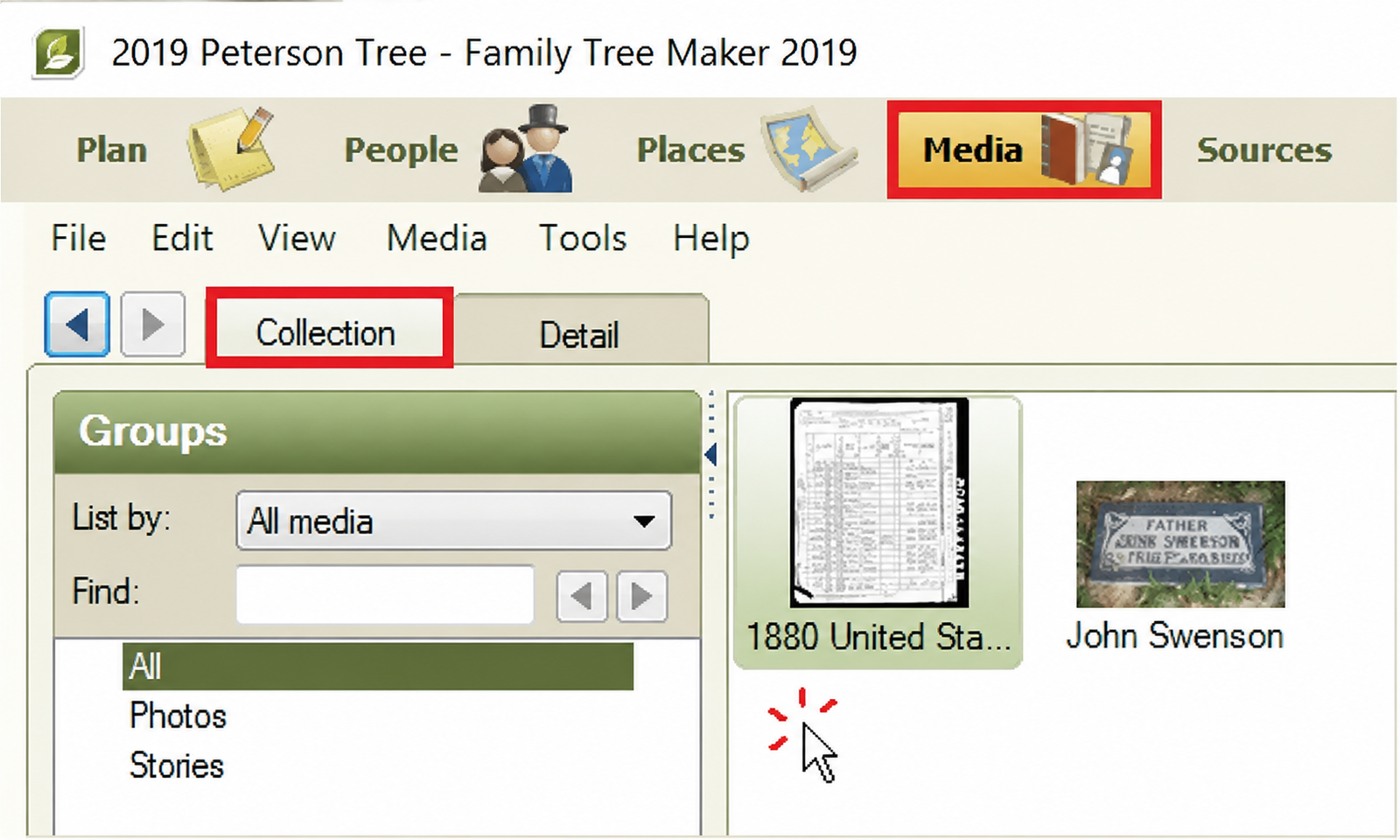
- Navigate to the media workspace, select the “Collection” tab and then click the empty white space area below the media thumbnails.

- Press ctrl and F5 simultaneously.
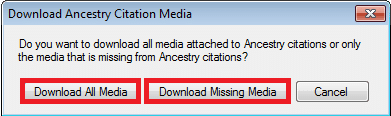
- A download options window will open. it will give you two options. choose to download all media in order to save every image associated with your ancestry citations, or simply download missing media to download only the missing files.

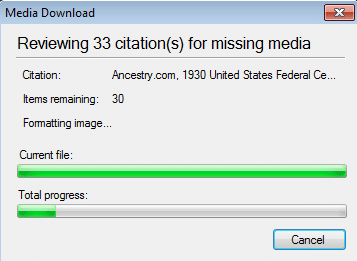
- A download progress window will appear on your screen, showcasing the status of your source images. The timeline can range from a few minutes to a few hours, depending on the requirements of the downloaded images.

- After the process completes, the media download box will disappear, and the source images will appear temporarily as thumbnails in your media box.
How To Download An Individual Source Image
Take help of the below-mentioned steps to download an individual image:
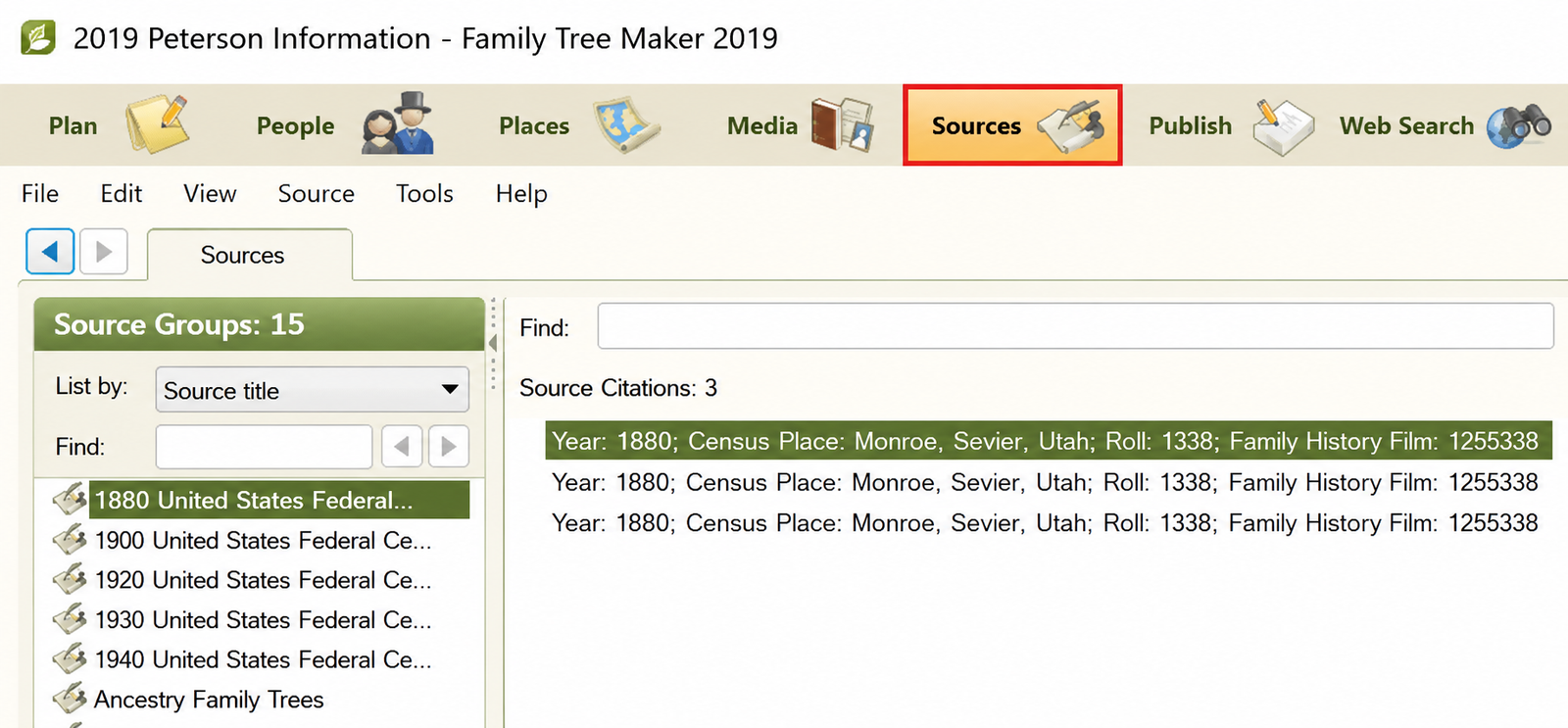
- Head to the “Sources Workspace” by selecting its button at the top of the program.

- Select the source citation you want to download an image for and double-click it to download its image.
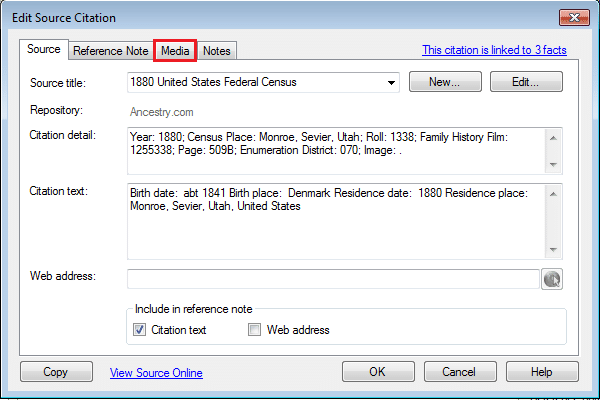
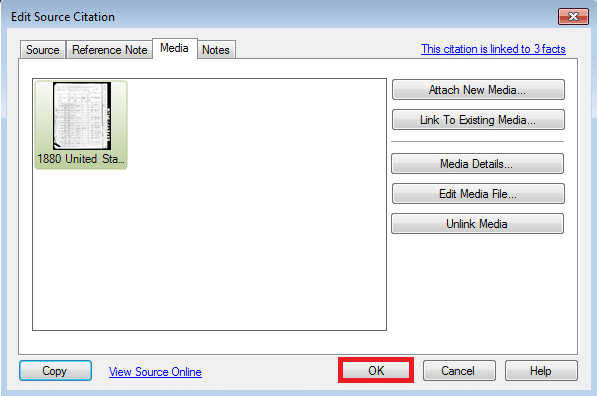
- Open the “Media” tab in the edit source citation window.

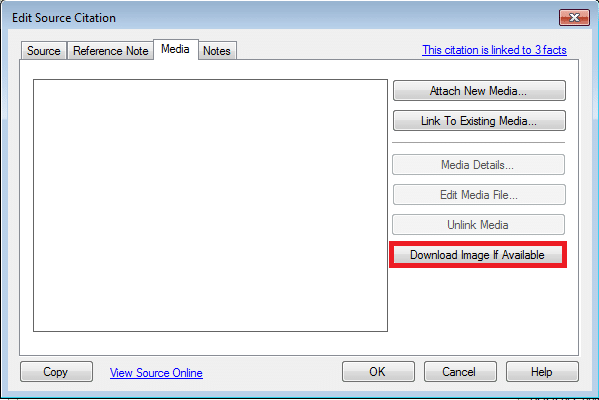
- Check whether the citation has attached media. If yes, click “Download Image” in the bottom-right corner of the window if it’s available.

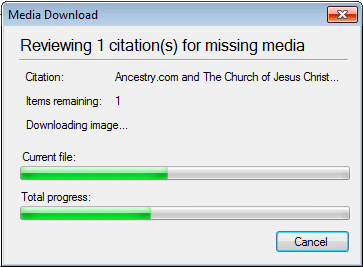
- A progress window will pop up. It will show the status of your media download.

- The image has been downloaded. Check it in the media workspace or from the source citation. after this tap ok to close the window.

| Note – The downloads only include selected source citations. To get media from other citations, repeat the process for each one. |
How To Troubleshoot Source Image Download Issues In FTM 2010-2024?
If you are facing issues while downloading source images in Family Tree Maker FTM 2010-2024, it might be due to poor ancestry connection, media availability, internet connection, or software version. Adhere to the steps below to resolve the problems.
Check Your Ancestry Connection
How to do:
- Click on your Family Tree Maker and check whether your tree is linked to the correct Ancestry tree.
- Ensure you have signed in with the same Ancestry account that contains source records.
- If the connection is inactive, sign out of your Ancestry account in FTM and sign back in.
- Sync your tree again, then try downloading the source images.
Confirm Your Source Citation Has Attached Media
How to do:
- Open the sources workspace in Family Tree Maker. Select the source citation that you want to download.
- Click the citation media, then go to the Media tab.
- Check whether an image or document is attached.
- If there is no media available, FTM will not contain anything to download.
Restart Family Tree Maker
How to do:
- Save your family tree file.
- Close Family Tree Maker completely.
- Hold on for a few seconds before reopening the program.
- Click on the tree file and open it again.
- Initiate the source image download process again.
Check Your Internet Connection
How to do:
- Ensure you have a stable connection.
- Do not download large amounts of media while a weak wifi connection is in use.
- If the download stops in the middle, wait and start again.
- Try to switch to a stronger network connection if possible.
Update Family Tree Maker
How to do:
- Click on FTM and open it.
- Head to the update or help section available within your version.
- Install the latest available update.
- Restart FTM after installing the update.
- Try downloading the source image again.
Conclusion!
With proper guidance on how to download source images in FTM 2010-2024, you can manage your ancestry media hassle-free. If there are any missing images or download issues, ensure you have a stable internet connection, the tree is properly linked to Ancestry, and repeat the download process if required.
📞 Call Family Tree Maker Support: +1-888-257-3335
💬 Live Chat with a Family Tree Maker Expert
For any additional support with downloading source images for FTM 2010-2024, connect with Family Tree Support and have a word.
Andy Smith is a genealogy researcher and family history specialist with over 10 years of experience in family tree research, ancestry records, and genealogy software. He specializes in Family Tree Maker, Legacy Family Tree, Ancestry, FamilySearch, and DNA-based family history research, helping users preserve and organize their family heritage.