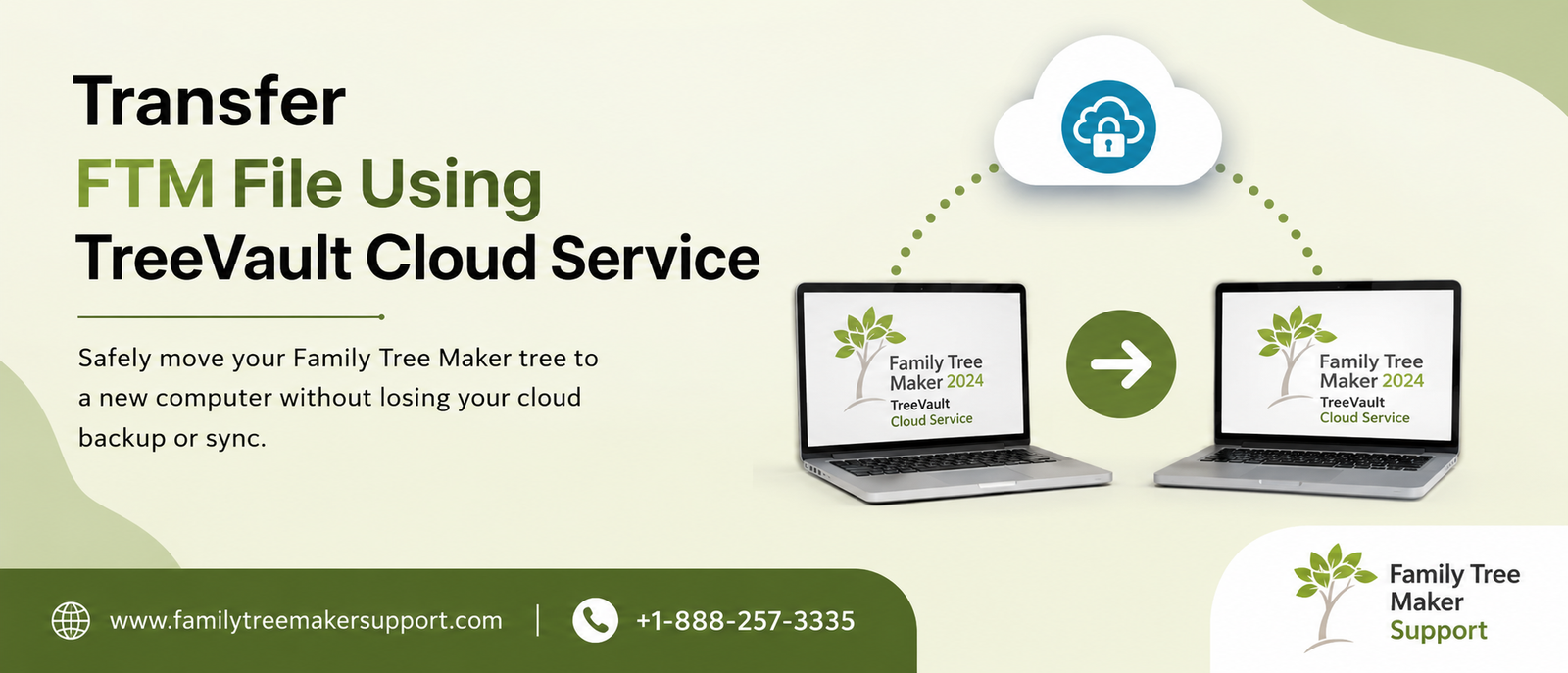
If you are looking to use TreeVault Cloud Services, transferring Family Tree Maker (FTM) files to a new computer is very easy, as it is simpler than copying a backup file. To ensure your FTM source tree consistently syncs with your Tree Vault antenna tree, you will need to follow the correct transfer process.
This will help you preserve your cloud backup, maintain access to Family Tree Connect, and enhance the security of your genealogy research. With this guide, we will walk you through the procedure of transferring FTM files from one computer to another using Tree Vault cloud services without affecting the data or cloud connection.
How To Transfer FTM File using TreeVault Cloud Service
Follow the steps below to transfer the tree from one computer to another.
For The First Computer
- Open you family tree maker on your current computer.
- Create a full backup (.ftmb) of your FTM source tree and ensure it includes all the media files.
- Save the backup file to a location that is easily accessible to you.
- Copy the backup to a USB flash drive.
- Remove the USB drive safely once you transfer it.
For The Second Computer
- Connect the USB flash drive that contains your Family Tree Maker backup to your new computer.
- Copy the .ftmb backup file from the USB drive into the computer’s hard drive. It is highly recommended to restore the backup from a local folder rather than directly from the USB drive.
- Click on Family Tree Maker, open it , click File, and select Restore.
- Navigate to the location where you have saved the backup file, select the .ftmb file, and click Open.
- Now click the location, choose where you want the restored tree saved, then click Save. Family Tree Maker will simply restore the backup, and the family tree will open automatically.
- Sign in to TreeVault cloud services through the same TreeVault account that you used to connect to your family tree on the previous computer. If you have signed in to a different account, just sign out, then log back in with the correct credentials before continuing.
- Open the tree browser and then select View>Tree Browser. Then click on the Select Tree menu on the toolbar and click on Tree Browser.
- In the Tree Browser window, choose Tree Vault from the left panel and then click Next.
- Tap on Find FTM Source Tree to look for the restored family tree on your computer.
- Choose the restored tree from the search results, check whether the tree name and file location are correct, and click Use as Source Tree.
| Note: If you had closed the restored tree while setting up, it will automatically reopen after the connection gets complete. It is also possible to open it manually at any of the time by selecting Open this FTM Tree from the Tree Browser window. |
What Is TreeVault Cloud Services
TreeVault Cloud Services stands for a safe and secure online storage system designed for the Family Tree Maker (FTM) genealogy software. It is offered by the software maker. It works alongside your desktop Family Tree Maker to provide a number of features, including cloud storage, synchronization support, and secure access to your family tree.
What Are Its Features
There are a number of features of TreeVault Cloud Services. Go through all of them at once:
- Emergency Tree Restore Service
TreeVault keeps a backup of your tree and media in the cloud every 15 minutes. This helps in protecting all the changes you made.
- Family Tree Maker Connect
It is a free companion app that lets you view your up-to-date family tree on a smartphone or tablet anywhere.
- Relative Hint
With this, you can share your family tree with relatives through the Family Tree Maker Connect app. It lets your relative leave a relative hint sticky note, which is automatically added to your tree for review only.
- Next Of Kin
Through this feature, you can assign a person to inherit your Family Tree Maker tree and continue your family legacy.
- Historical Weather
Historical weather lets you incorporate real past conditions into your family stories, making them more engaging and realistic.
How To Use Treevault Cloud Services
Here are some of the steps mentioned below. By adhering to all of them, you can easily use the Treevault cloud services.
- Purchase Treevault
It is a subscription feature available for Family Tree Maker 2019 and Family Tree Maker 2024. ensure your subscription is active before commencement.
- Open Family Tree Maker
Launch Family Tree Maker and open the family tree that you want to protect with TreeVault.
- Sign In To Your Account
Sign in to your account by using all of your account credentials. If you have not created an account, create one first.
- Build A TreeVault Antenna Tree
After enabling TreeVault, Family Tree Maker creates a secure cloud copy of your desktop tree, which is known as the TreeVault antenna tree. It is used for cloud backup, Family Tree Maker Connect, and emergency tree restore.
- Lets Your Tree Upload
Family Tree Maker will upload your tree and (as per your subscription) all of your media files to TreeVault. The first uploads will take time depending on the tree size, number of photos, and internet speed.
- Work As Usual
You can continue working on your tree as usual. It automatically updates your cloud copy every 15 seconds, securing all of your latest changes.
- See Your Tree On Mobile (Optional)
You can install the Family Tree Maker Connect app on your iPad, iPhone, or Android device. You can sign in with your TreeVault account to see your family tree , browse the family members,read the notes and relationships, and view all your photos and media.
Conclusion!
It’s very easy to transfer the family tree maker to a new computer, especially when you have to Transfer FTM file using TreeVault Cloud Service. Once you restore the backup in the correct manner and reconnect it to your existing TreeVault account, you can keep on using features such as Family Tree Maker Connect, Emergency Tree Restore, and TreeVault Antenna Tree without worrying about any kind of interruption. If you need extra security, develop a habit of creating regular .ftmb backups in addition to the TreeVault Cloud Backup. It provides multiple layers of security for your family history research.
 Call Family Tree Maker Support: +1-888-257-3335
 Live Chat with a Family Tree Maker Expert
Protect your family history by transferring your FTM files via TreeVault Cloud Services.
Andy Smith is a genealogy researcher and family history specialist with over 10 years of experience in family tree research, ancestry records, and genealogy software. He specializes in Family Tree Maker, Legacy Family Tree, Ancestry, FamilySearch, and DNA-based family history research, helping users preserve and organize their family heritage.