Family Tree Maker’s Smart Stories & FamilySync feature helps users enhance their storytelling while also managing data synchronization with Ancestry.com. Smart Stories allow you to create a narrative biography from the various facts you collect, while FamilySync allows for seamless syncing between multiple devices (via Family Sync) and the online version of your family tree(s).
Smart Stories and FamilySync in Family Tree Maker
Will My Smart Stories Synchronize to Ancestry?
Ancestry handles stories differently from Family Tree Maker; however, all Smart Stories that are properly linked to an individual will be updated during synchronization. Smart Stories create in Family Tree Maker will be upload to Ancestry as .rtf documents. These cannot be viewed in the online version of your family tree, but they may be downloaded. Smart Stories can be uploaded only if attached to an individual(s) and can be done via the following process.
Creating and Saving a Smart Story
- To create a Smart Story for a person, first find the person to create the Smart Story for and select the Media workspace.

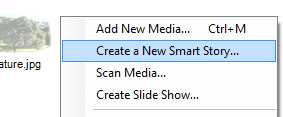
- To create a Smart Story, right-click anywhere in the blank area of the Media workspace and select the Create a New Smart Story option.

- When creating your Smart Story, you must choose which way you want Family Tree Maker to auto-populate the Smart Story. If you choose how you will use the Auto Populate option, then you can create your Smart Story from scratch without any Auto-populated items, or if you choose not to Auto-populate, you can use Family Tree Maker to create a story that is made by you.

- You should now create your Smart Story. For a complete list of how to create your Smart Story or see how to use the Auto Populate feature, please click here.
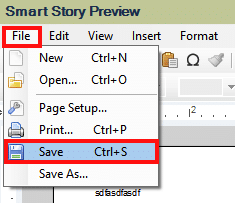
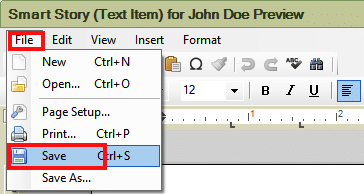
- When you are ready to save your Smart Story to Ancestry, go to the File Menu. From there, select the Save option.
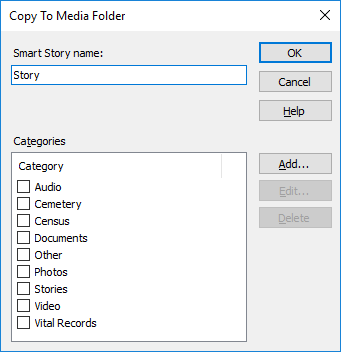
- A window will open, allowing you to enter your Smart Story’s name, how you would like to categorize your Smart Story (very useful if you have a lot of media items and will like to categorize them for later sorting from your media collection), and you will be able to click OK to finish creating your Smart Story.


Linking a Smart Story to a Person
To sync a Smart Story with its corresponding individual from your family tree. You first need to save the Smart Story in the format of Media. You can accomplish this through the steps below:
- Click on the Publish workspace.
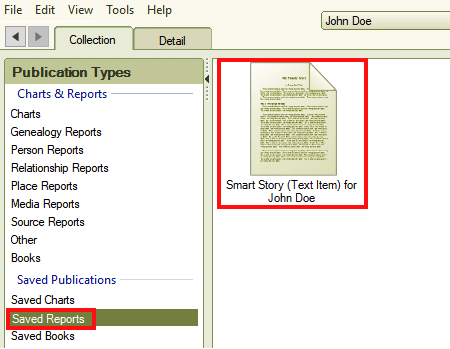
- Select Saved Reports under Publication Types. Then Open your ‘Smart Story’ by double-clicking on the icon.

- If you’re not making changes to the Smart Story, under the File menu, you will want to select Save. If you don’t select “ Save, ” your Smart Story will not sync.

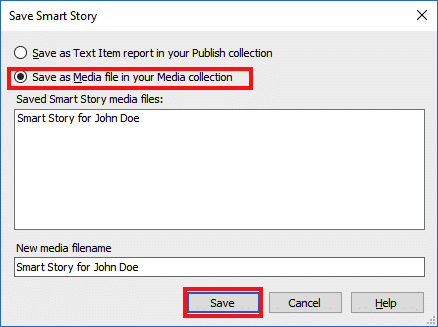
- Select Save as a Media File from your Media collection, rename your Smart Story if desired, and click Save.

- Now you should go to the Media workspace to find your newly saved Smart Story.
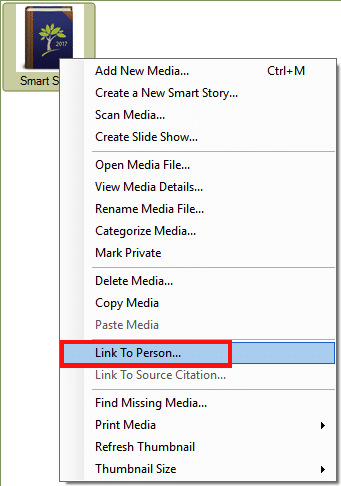
- Find your Smart Story in the Media collection, right-click on the icon and select Link to Person.

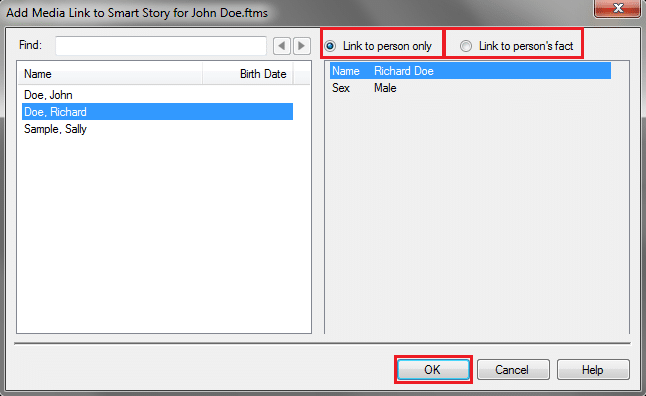
- Choose a person to link the Smart Story to – either just the person so it appears in their Media Gallery on Ancestry, or link it to a specific fact so that it appears in both their Facts and Sources and Media Gallery on their Ancestry profile page. Click OK to save the link.

- When you synchronize your Family Tree next, the Smart Story will upload to Ancestry.com. You will be able to locate it by going to the profile page of the individual to whom you linked the story and then viewing their Media Gallery.

The stories that you’ve created on Ancestry will also sync to your Family Tree Maker tree. You don’t have to link these stories to any particular individual to have these downloaded into Family Tree Maker when you do your next sync.
All stories that originated on Ancestry will be save as .htm files in your Family Tree Maker’s media collection. You will not be able to directly view or modify these files through Family Tree Maker. You can only view them by double-clicking on the file’s icon using a web browser. To modify any of the text from the web browser, you would need to copy and paste the text from the web browser into your word processing program.
Notes: Stories you create in Ancestry will sync through the sync process with Family Tree Maker if you unlink and relink your tree in Family Tree Maker and then upload it again in Ancestry. But if you download your Ancestry tree into FTM to relink it. You will create a new FTM file that contains all the stories found in the Media Gallery.
Conclusion
The above instructions are absolutely reliable and effective. Therefore, we trust that you now fully understand how to go about Smart Stories and FamilySync. Nevertheless, if you require any further guidance, you can call the Family Tree Maker Support Number +1-888-257-3335. Or simply choose to connect with our most eligible experts by using the live chat service at any time.